Language and keyboard learning
Switching keyboard languages: verify the layout before practicing
Distinguish website language, operating-system input layout and the text you type. Practice layout transitions and punctuation without changing important data.
A familiar physical key can produce an unfamiliar character when the active input layout changes. At the same time, a website may show its menus in a different language without changing the characters produced by your keyboard. This guide separates those controls and gives you an original verification routine for multilingual typing. It focuses on checking the environment and practicing deliberate transitions, rather than recommending a universal layout or asking you to alter a working setup merely for variety.
Distinguish three different language choices
Microsoft documents separate controls for the Windows display language, application language preferences and keyboard input layouts. In particular, changing the keyboard layout alone does not change the Windows display language. Use that distinction when diagnosing unexpected input. The language shown in menus, the active input layout and the language of the source text can be different. A website language selector should not be assumed to install or switch an operating-system keyboard layout. [Microsoft: language preferences and keyboard input layouts]
Write a brief environment note before practice. Identify the operating system, the active layout and the text language you intend to type. If you are changing only a website interface language, leave the working system layout alone. If your task requires another layout, use the operating system’s verified instructions and follow any rules for the shared or managed device. Keeping these decisions separate avoids changing several settings at once and then having no clear explanation for what happened.
Verify input in a harmless document
Open a blank document you control and enter a short check string. Include letters, a capital, a number and punctuation relevant to the task. Compare what appears with what you intended to type. If something differs, inspect the active layout indicator and the applicable device instructions. Do not use an important form, a live message or a password field as the test area. A harmless document gives you room to observe the output without submitting an unintended value or exposing a credential.
Choose a check string for the particular layouts you use rather than copying a supposedly universal one. If punctuation is the main difference, include those marks in a small fictional sentence. If your task needs accented characters, verify the exact characters before starting a timed exercise. Keep the result beside the environment note. The useful observation is which input method produced the intended text, not whether a layout unfamiliar to you feels faster during its first attempt.
Practice note: interface language / input layout / source-text language
Check: familiar letters, a capital, a number and the punctuation needed for your task.
Use fictional text in a blank document.
Practice a transition as a deliberate sequence
Start in one known layout, enter a short familiar phrase and check it. Change the layout using the verified method for your system, confirm the active state and enter a second phrase. Pause to inspect the result before switching back. This is an original familiarization exercise, not a speed assessment. The confirmation step is part of the task. Do not omit it merely to make a transition feel rapid, particularly when similar physical key positions produce different characters.
Change the phrases after a few attempts. Keep them short enough to review completely and avoid including private names, account details or work material. If you produce an unexpected character, undo only the harmless test text and identify the active state before repeating the sequence. Do not change multiple layout settings in response to one error. First establish whether you used the intended layout and whether the input combination you tried is documented for that layout.
Check a layout switch deliberately
- Identify. Read the selected input layout rather than relying on the display language.
- Verify. Type letters, punctuation and a fictional identifier in a harmless document.
- Restore. Return a shared device to the agreed layout when finished.
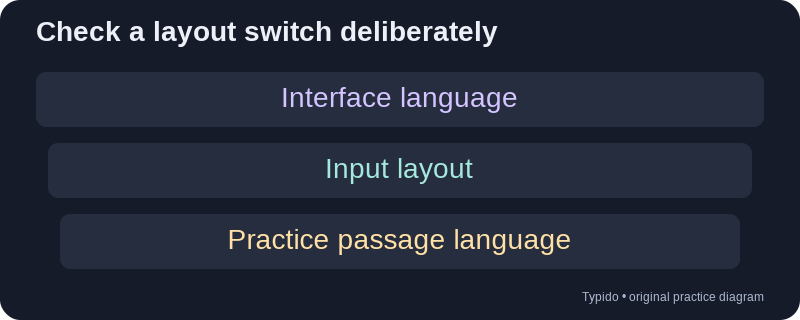
Treat punctuation and identifiers as exact text
Create an invented example containing punctuation that matters to your work, such as a reference code with a hyphen or a short sentence with quotation marks. Compare the typed output with the source character by character. For an exercise, keep the expected string visible. Do not silently replace an unfamiliar mark with a more familiar one and count the result as an exact copy. The purpose of this check is to notice the difference before it appears in an important document.
For programming-related practice, use inert text outside a project that could execute or deploy changes. Include the exact symbols you need to verify and check both opening and closing delimiters. A layout transition and an editor shortcut can each affect what happens after a key combination, so investigate them separately. Record the intended character, active layout and observed result. That note gives you a concrete question to resolve through the relevant operating-system, device or editor documentation.
Keep comparisons within clearly described conditions
Maintain a separate practice baseline for each text language and input layout you actually use. Record the duration, source text conditions and correction rules. A result on a familiar English passage and a result on an unfamiliar passage in another language do not isolate the effect of the layout. Use the records to choose practical next steps rather than assigning a general ranking to languages, alphabets or learners. A small, well-described personal comparison can be useful without making any population-wide claim.
When a score changes, inspect what happened before choosing a drill. An incorrect symbol after a layout change calls for state verification. A repeated letter substitution within a known layout calls for a movement exercise. Uncertainty about spelling calls for language support. These are suggested categories for reviewing your own attempts, not an automated diagnosis by Typido. Keep enough context in your note that you can tell which question the next session is intended to answer.
Leave a shared or managed device in an understood state
Before changing settings on a shared computer, ask the responsible person which changes are permitted and how the device should be left afterward. Use the documented controls and avoid installing extra tools simply to test a layout. If your task only requires looking up a particular character, consider the approved input methods already available on that device. The goal is to complete the exercise without disrupting another person’s working environment or making the next sign-in unnecessarily confusing.
At the end of practice, check the agreed input state and close the harmless exercise document according to the device’s normal rules. Keep your environment note for the next session. If a problem remains unresolved, describe the expected character, the actual output and the verified layout rather than saying only that the keyboard is broken. This makes a request for help more precise and keeps troubleshooting focused on observable behavior. Resume timed practice once the input environment is understood and the exercise matches your intended task.
Common questions
Does changing Typido’s menu language change my operating-system layout?
Treat those as separate controls. Typido’s interface language does not establish which characters your system produces. Verify the active input layout using your operating system’s documented controls.
Can I compare typing scores across different layouts?
You can keep a personal record, but describe the text language, familiarity, duration and scoring conditions. A difference between two attempts does not isolate the layout or establish a universal advantage.