Keyboard choices
QWERTY vs Dvorak: how to evaluate a keyboard-layout change
Compare QWERTY and Dvorak without guaranteed speed claims. Check software layouts, shortcuts, shared devices and a reversible practice plan before switching.
Changing a keyboard layout is a learning decision, not a guaranteed speed upgrade. QWERTY and Dvorak arrange characters differently, so the movements you already know will not produce the same text after a switch. Before investing time, identify the problem you want to solve and the devices you must use. A deliberate trial is more useful than assuming that a new arrangement will automatically improve typing speed or comfort.
Distinguish the physical keyboard from its input layout
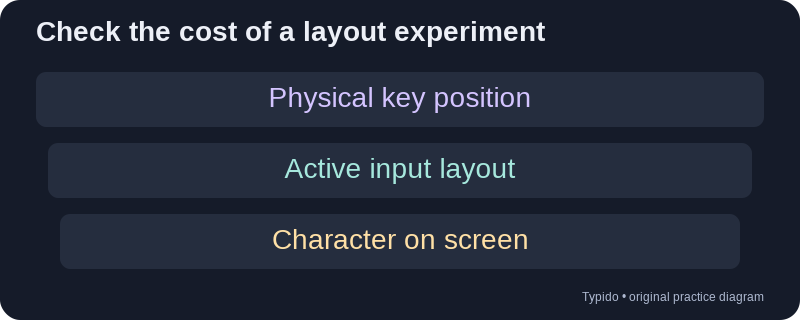
The keyboard is the hardware in front of you; the input layout tells the operating system which characters its keys produce. Printed key labels may no longer match after you change that setting. A national layout can also change punctuation even when many letters appear familiar. Verify the active arrangement in a blank document before practicing. A mismatch can otherwise look like a typing error even when you pressed the physical key you intended.
Microsoft’s Windows guidance explains how to add and switch input layouts and notes that the layout and display language are separate settings. Consult the current instructions for your operating system rather than copying an old menu path. If the machine is managed by a school or employer, follow its device policy. Keep a known way to return to the original layout so an experiment does not interfere with essential work.
Define the reason for considering a switch
Write down the actual difficulty: a particular key reach, frequent punctuation use, a new split keyboard or curiosity about another arrangement. A layout change introduces many unfamiliar movements at once, so it can make a narrow problem harder to diagnose. You may first want to test keyboard positioning, key familiarity or a small targeted exercise. None of those requires committing to a different arrangement for all your daily tasks.
Do not treat an anecdote about another typist as a guaranteed result for you. Their practice history, language and work can be very different. Compare the layouts on your own tasks and equipment. If your concern is persistent pain or another health symptom, seek appropriate advice rather than relying on a keyboard-layout comparison to explain or resolve it.
List the environments that need to keep working
Consider your laptop, shared office computer, remote desktop, login screen and any application with important shortcuts. A layout that you can select on your own machine may not be available or convenient elsewhere. Printed instructions in a class may assume QWERTY, and a game can interpret physical key locations differently from character input. Test the actual application rather than assuming that all controls will behave the same after a switch.
Use fictional text while testing and keep essential account recovery information accessible through your normal secure method. Be particularly careful when entering passwords if the active layout differs from the labels you see. Do not save a real password inside a practice document. Check copy, paste, undo and other shortcuts you rely on. Discovering a conflict during a short trial is easier to manage than finding it during an urgent task.
Check the cost of a layout experiment
- Personal computer
- Record how to restore the current input layout before switching.
- Shared computer
- Agree on a visible way to identify and restore the selected layout.
- Shortcut-heavy work
- List three commands that must remain usable, then check them in the trial layout.
Make the experiment reversible and clearly separated
Keep the familiar layout available and assign a small, clearly defined practice period to the alternative. Use a diagram specific to the new arrangement and start with its home positions. Record which layout you used for each result. Early attempts measure learning a new map, so comparing them immediately with years of experience on another arrangement is not a fair test of long-term potential. Avoid switching the setting accidentally between attempts.
Try locating a few letters, entering short words and copying a new sentence. Then switch back deliberately and confirm that the familiar arrangement is active. Repeat this controlled sequence on another day if you want to continue the trial. You are checking whether the arrangement and switching workflow fit your needs. You do not need to announce a permanent change or abandon a working setup before gathering that information.
Compare more than a short speed burst
Use the same language, passage style and duration when comparing typing tests. Track accuracy and corrections alongside WPM, and include the punctuation you use in real work. A paragraph of lowercase common words can miss the characters that make your daily tasks difficult. Also record practical observations: whether a shortcut interrupted you, whether a shared machine caused confusion or whether the exercise required repeated layout checks.
Keep the difference between practice and productive work clear. Time spent learning a layout is an investment, not evidence of a particular future benefit. A faster result on a familiar passage does not show how well you can write, code or use every application. Try an unfamiliar sentence and a harmless task in your normal editor before drawing a conclusion. The most useful comparison is the one that reflects what you actually need to do.
Check what Typido’s lessons assume
Typido’s conventional finger-placement guidance describes QWERTY movements. Changing your operating system’s layout does not automatically turn those diagrams into a Dvorak course. Read the activity instructions and check the expected character before starting. Text copying, position diagrams and game controls are different forms of input practice; they may not all be suitable for the same experiment. Do not interpret an unsuitable lesson as evidence that you cannot learn the arrangement.
At the end of a trial, decide whether to continue, return to the original layout or investigate a smaller change. Write the reason in terms of observed tasks rather than a promised speed improvement. You can keep practicing accurate QWERTY typing if that remains the practical choice. The purpose of comparing layouts is to choose a setup you can use dependably, while keeping important work and shared-device access functioning.
Common questions
Will Dvorak automatically make me faster?
No guaranteed improvement is claimed here. Changing layout requires learning new movements, and the result depends on your experience and tasks. Use comparable tests and real application checks rather than relying on a universal speed claim.
Does changing layout change the language of Windows?
Microsoft distinguishes the input layout from the display language. Follow its current instructions for your device, and verify the active layout before entering sensitive information or using a shared computer.