Typing at work
Typing practice for coding: symbols, case and careful editing
Practice brackets, capitalization, identifiers, and editing with code-like drills. Measure familiar keyboard movements separately from prose WPM.
Coding involves far more than entering characters. Reading unfamiliar code, choosing a design and checking behavior are essential work, even when no key is pressed. Keyboard practice can help with the mechanical part: finding symbols, preserving case and editing a small expression. Use the original examples here in a plain text editor. They are copying exercises, not commands to run or a replacement for learning a programming language.
Decide which part of typing code interrupts you
Notice the first mechanical interruption in a small familiar expression. Do you search for an opening bracket, hold Shift too long or miss the underscore in an identifier? Distinguish that from stopping because you do not understand the expression. A typing drill can isolate a key movement, but repeating code faster will not supply missing programming knowledge. Choose an example you can read well enough that the intended characters are unambiguous.
Write a short note naming the interruption, such as “closing parenthesis after a capital letter.” Keep one focus for the session. If you change languages, editor settings and keyboard layouts at the same time, it becomes hard to tell what improved. Use fictional identifiers and harmless text. Do not copy production credentials, private repository code or customer data into a public typing tool merely to make the exercise feel realistic.
Practice paired punctuation as a complete shape
Brackets and quotes often appear in pairs, but finding the first symbol does not guarantee that the second will be correct. Copy a short pair, inspect both ends and then place a small value inside. Watch for a repeated opening mark where a closing one belongs. Keep the active layout stable because symbol positions can differ substantially between national keyboard arrangements, even when the letters look familiar.
The example below gradually adds content to each pair. Type it into a blank editor without executing anything. If automatic closing characters are enabled, note that the editor is helping complete the text. You can practice with that assistance because it is part of your normal workflow, but do not compare the result directly with an unassisted copying test. Describe the conditions so a later attempt measures the same task.
Begin with a fictional label wrapped in a pair of symbols: “(blue_folder)” or “[green_note]”. Type the pair and its contents without a timer. Read the result from left to right, checking the opening symbol, label and closing symbol separately. If you are following a finger-placement method, review its diagram away from the task before trying again. Avoid reaching harder just to avoid looking at an unfamiliar key.
Change the label on the next attempt. Use “(amber_list)” or “[violet_card]” so that you are practicing the movement around fresh text rather than repeating a memorized string. Mark the exact point of hesitation. Did you search for the opening symbol, miss a modifier or forget to check the closing symbol? Choose one of those observations for the next drill. Do not infer a broad weakness in programming from a small keyboard mistake. This worksheet is intentionally narrow so that a concrete movement can be practiced on its own.
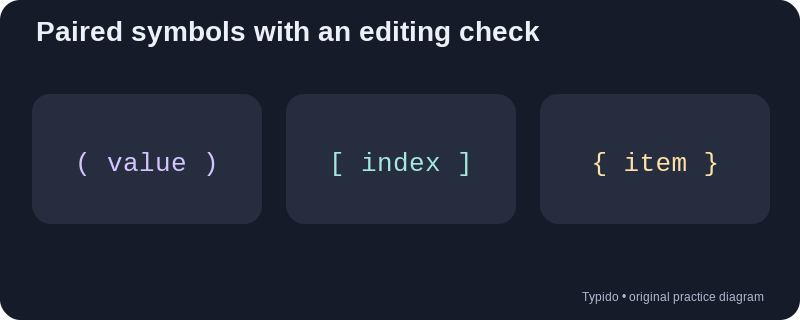
() [] {}
(item) [index] { count: 3 }
const label = "sample";
Paired symbols with an editing check
- Copy pairs. Type () [] {} in a disposable plain-text document.
- Add a value. Copy items[2] and label = "green" without running either line.
- Make one edit. Change only green to blue; verify both quotes and the surrounding text.
- Check assistance. Record whether the editor inserted closing symbols automatically.
Keep case and separators meaningful
Technical identifiers can change meaning when a letter’s case changes. Practice switching between lowercase and capitals without leaving Shift pressed for the following character. Then include a separator such as an underscore or hyphen where your actual task uses it. Read the complete identifier before typing. Guessing the ending from a familiar name can produce a clean-looking word that differs from the source.
Try copying “itemCount”, “item_count” and “ITEM_COUNT” as separate forms. Next, replace “item” with another short word and repeat. Check every character rather than accepting an approximate visual match. You are practicing the movement and visual verification, not declaring that one naming style is better. A useful record identifies whether the error was capitalization, a missing separator or a substituted letter; each suggests a different next drill.
Include spaces, indentation and line endings
A short prose test may not reveal hesitation around punctuation followed by Space or Enter. Copy a small multi-line example and check where each line starts. If the editor inserts indentation, distinguish its behavior from what you entered yourself. Different languages and teams use different conventions, so follow the format of the example rather than treating a keyboard exercise as a universal style guide.
Use the fictional function below to practice a capital transition, parentheses, braces and a line break. The text can be inspected safely without running it. After copying, count the opening and closing marks visually, check the name and compare the spacing. Then change the name or value to create a fresh example. Repeating one snippet from memory can hide a movement that still becomes uncertain when the character order changes.
function readCount() {
  return sampleCount;
}
Practice editing without turning it into a shortcut contest
Everyday coding includes replacing a name, inserting a missing character and moving between lines. In a fictional snippet, deliberately change one identifier and then restore it. Notice whether the difficulty is locating the cursor, selecting the intended span or entering the replacement. Slow, accurate selection is useful practice. A fast replacement of the wrong occurrence is not a better outcome simply because it required fewer seconds.
Use only shortcuts you understand and can verify in your editor. Operating systems and applications may assign different actions to the same key combination. Typido’s Advanced lessons include shortcut, number-pad and terminal-related practice and require Pro. They are distinct from the free general typing test and current appearance customization. Read an activity’s access and instructions before expecting a prose score or a particular editor workflow from it.
Create a deliberate mistake in a fictional label, such as writing “blue_fodler.” Read it, move to the error using your verified controls and correct only the affected text. Then move the insertion point back to where you intend to continue. The final position matters to this exercise: a correct replacement followed by typing in the wrong place still deserves a note in the log.
Describe the correction as a sequence of actions rather than an overall impression. You might write “selected the right word, replaced it, then forgot to return to the line end.” That suggests practicing the final navigation step. If you cannot remember the command, consult the command card and rehearse it separately. Avoid turning the entire session into repeated speed attempts when the useful work is one careful correction. You can finish by copying a fresh fictional label and checking whether the same editing sequence now feels easier to follow.
Track keyboard progress separately from code quality
Take a comparable timed prose test if you want a general WPM baseline, and keep a separate observation for symbols or editing. An increase in prose WPM does not prove that you understand a program or can safely modify production code. Likewise, a careful code review can be valuable even when the number of entered characters is small. Avoid turning typing speed into a proxy for overall developer performance.
Finish a practice session by copying a new, readable snippet and checking it against the source. Note one repeated symbol or case error and choose a smaller exercise for next time. If your normal editor supplies completions, describe that support in your record. The aim is dependable entry and confident correction within your workflow, while keeping reasoning, testing and review as essential parts of programming rather than treating them as unwanted pauses.
Common questions
Should I run the examples?
No execution is needed. They are original copying examples for punctuation and editing. Use a plain text document, compare the characters and keep production systems and credentials out of the exercise.
Does a high WPM make someone a better programmer?
A typing score measures a particular input task. It does not assess design, reasoning, debugging, security or code review. Track keyboard fluency as one practical skill rather than a substitute for those abilities.
Sources and further reading
- Visual Studio Code: Keyboard shortcuts
Supports the factual software-setting statement cited in the first section. The device maps, fictional text and practice sequences are original Typido suggestions, not measured performance claims.