Programming practice
Keyboard shortcuts for programmers: practice navigation, edits and verification
Practice real editor commands and verify each edit. Check key bindings for your platform and track shortcut fluency as its own skill.
Typing a source file and editing one are related but different tasks. A programmer may need to find a symbol, select an expression, rename a local variable and inspect the result. Copying text quickly does not establish that those edits are correct. This guide focuses on the movement between navigation, commands and character entry, using original inert examples. Practice in a disposable text file, then judge the completed edit and its accuracy.
Start with actions rather than a long shortcut list
Choose a few actions you already perform repeatedly: finding a line, searching for a term, selecting a word or opening an editor command. Write the action in ordinary language before writing a key combination. This keeps the goal understandable when a binding differs between computers. Create a tiny practice file outside a production repository and rehearse each action there. Confirm the expected result after every command rather than treating successful key presses as proof that you changed the intended text.
VS Code provides a Keyboard Shortcuts editor and platform-specific default references. Its documentation also explains that user bindings, extensions and command context can create conflicts. Use those official controls to verify the binding on the installation you use. A shortcut from a screenshot of another operating system may not apply unchanged. When writing your practice card, record the editor and the action beside the current binding so the card remains useful when you need to look it up again. [VS Code keyboard shortcuts and conflict troubleshooting]
Practice locating text without changing it
Begin with a fictional file containing a few clearly named items. Use the editor’s verified search or navigation action to locate one of them, then stop before editing. Check the file and the selected occurrence. This separates finding the intended location from modifying it. If you repeatedly land on the wrong occurrence, practice changing the search term or narrowing the target. Do not compensate by typing a replacement more quickly; the error happened before text entry began.
Change the example after it becomes familiar. Use names that are similar enough to require reading, such as draftTotal and finalTotal, but avoid names copied from a confidential project. Keep the file small enough to inspect completely. Record whether you found the intended target and what made an attempt unclear. A navigation drill is successful when the location is correct and you know why, even if you have not timed the sequence or entered many new characters.
const draftTotal = 12;
const finalTotal = 18;
// Exercise: locate draftTotal without changing finalTotal.
// This is inert text for an editor exercise; execution is unnecessary.
Rehearse a precise edit and inspect its boundaries
Choose one explicit change, such as replacing a local identifier in the practice file or adding a missing delimiter. State what must remain unchanged. Make the edit with the verified command or selection method, then read the affected line and its neighbors. Check the selection boundaries before typing into a highlighted range. This makes the task about controlling an edit, rather than about invoking a command rapidly and hoping that the intended text was selected.
Keep a separate copy of the original exercise so you can compare the result. If a replacement changed more occurrences than intended, undo it in the harmless file and examine the command’s scope. Do not use a global replacement on an important project as a speed drill. Once you can explain what the command affects, repeat the exercise with new names. Record the completed action and any verification step you skipped; those observations are more useful than counting the characters entered during the edit.
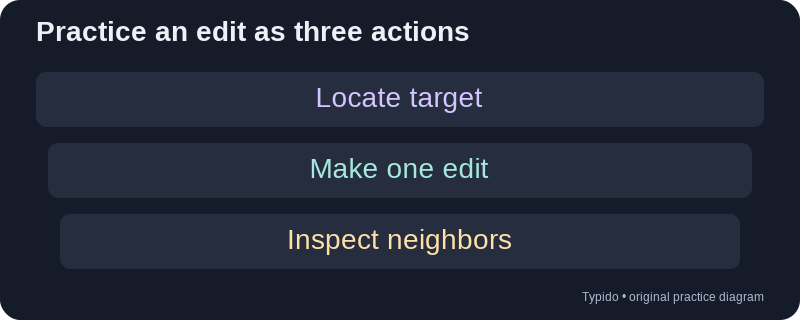
Practice an edit as three actions
- Locate. Find the target word using a command from your editor’s current settings.
- Change. Replace only that word in a disposable text file.
- Inspect. Read the affected line and its neighbors before recording completion time.
Separate symbol entry from command practice
Create a brief line containing the punctuation you want to rehearse: brackets, quotes, underscores or a comparison symbol. Copy it slowly in a plain practice document and check exact characters. Keep that exercise separate from shortcut learning so you can identify the cause of an error. If a key combination invokes an editor command instead of producing the character you expected, inspect the active layout and binding. Repeating the combination faster is unlikely to clarify which action the application received.
Use paired examples with different variable names and spacing. Check whether you omitted a closing delimiter, changed case or inserted an extra character. These examples are deliberately text exercises, so you do not need a terminal or a running application to practice them. Keep actual credentials, private URLs and proprietary source code out of the exercise. If you later practice inside a real project, follow that project’s normal review and testing process rather than relying on the typing drill as verification.
entry_count = items[index]
if (entry_count > limit) { note = "review"; }
Check punctuation and case against the source; do not execute the example.
Investigate a shortcut conflict before remapping
VS Code’s official guide describes viewing commands that share a binding and using Keyboard Shortcuts Troubleshooting to inspect what the editor receives. Use that information to investigate an unexpected result before changing multiple settings. Verify the command, key combination and context in a harmless file. Record the finding in your practice note. If the computer is managed by an organization, follow its configuration policy before installing a keymap extension or changing settings that affect other work. [VS Code detecting conflicts and troubleshooting keybindings]
Change one binding at a time if a change is appropriate. Keep a record of the old and new binding and the reason. Test the intended action and an ordinary editing task afterward. A successful remapping should make the command clearer for your use, not merely resemble a shortcut used in a tutorial. If the problem belongs to the operating system or a different application, consult that product’s current documentation rather than adding speculative editor settings until something appears to work.
Review completed work alongside ordinary typing fluency
End a practice session with a small sequence: locate the intended item, make a specified change and inspect the result. Note whether each step was correct. If you time the sequence, keep the task consistent and retain the accuracy observation. Do not convert the sequence into an occupational productivity claim. The exercise omits many parts of programming, including understanding requirements, designing behavior, reviewing changes and testing the resulting software. Keyboard familiarity is one practical skill within that larger work.
Use a separate, comparable Typido test when you want a prose transcription baseline. Use symbol exercises when punctuation is the difficulty and command exercises when navigation or selection is the difficulty. Choose the next session from the actual mistake rather than repeating all three activities every time. A short note such as “selected the adjacent identifier; verify target before replacement” gives the next practice a clear purpose. Reliable, explainable edits are a better result than a faster sequence that changes the wrong text.
Common questions
Should I memorize every editor shortcut?
Start with a small set of actions you actually use, verify their current bindings and practice them in a harmless file. Expand the set when you can perform and check the earlier actions reliably.
Does a high WPM score prove I can program faster?
A copying score describes a text-entry task. It does not measure the correctness of an edit, understanding of a problem or quality of software. Keep those assessments separate.