Keyboard setup
Mechanical vs membrane keyboards: compare feel without guessing your speed
Understand switch terminology, compare real keyboard layouts and run a fair typing trial. Separate manufacturer specifications from personal comfort and WPM.
Choosing between mechanical and membrane keyboards is easier when you separate the mechanism from the complete product. The switch type is one detail; key spacing, height, layout, sound and the position on your desk also deserve attention. This guide explains the terminology using a manufacturer’s technical overview, then provides an original comparison procedure. It does not promise that changing a switch will produce a particular WPM gain or recommend an expensive replacement for a keyboard that already suits your tasks.
Understand what the technology label describes
CHERRY’s technology overview distinguishes mechanical switches from membrane contact switches with elastomer domes. It also describes a scissor mechanism combined with membrane contacts. That distinction matters when reading a product listing: a visible key-support mechanism and the way a key registers are not necessarily the same classification. Treat the model’s own technical description as the source for its construction. Do not infer the complete mechanism, noise or durability from the height of a keycap in a photograph. [CHERRY keyboard technologies: mechanical, scissor and membrane designs]
Write a small product note for each board you are comparing. Include the exact model, stated mechanism, layout and connection. Keep manufacturer specifications separate from your own observations. For example, “mechanical switches according to the maker” is a documented specification; “I noticed a firmer feel when entering this paragraph” is your experience of a trial. Neither statement establishes that everyone will type faster on the board. This distinction keeps a comparison useful even when marketing language is more confident than your evidence.
Check the layout before comparing the feel
Place the layout diagrams side by side and inspect keys you actually use. Look at Enter, Shift, Backspace, the number row, punctuation and navigation controls. Check whether either model moves a familiar function onto a secondary layer. A test becomes difficult to interpret when one board changes the layout as well as the mechanism. If you are choosing between complete products, record both changes. If you want to examine key feel specifically, keep the layout as similar as you reasonably can.
Use a short invented editing task to expose these differences. Type a sentence with a capital, a comma and a number, then insert a missing word and remove a repeated one. Notice which key made you look down. If a relocated navigation control causes the pause, label it as a layout issue rather than blaming the switch. Repeat with different text after you have located the controls. This produces a specific observation you can act on without trying to isolate every physical property of the keyboard.
A simple letter passage can leave out controls you use throughout a normal session. Create an editing exercise in a disposable document. Type “The blue folder is on shelf C.” Deliberately change blue to green, insert another line and return to the end of the paragraph using your familiar controls. Use shortcuts appropriate to your application and operating system. If you do not know a command, learn it separately instead of counting that uncertainty against the keyboard.
Record whether you found Backspace, Return and the modifiers without searching. If the physical layout differs, describe the difference in the worksheet. Keep this separate from a claim about switch technology. You may prefer one device because of its key arrangement, connection or footprint rather than its mechanism. That is useful information for your decision. A comparison does not become less valid because the most important difference turns out to be something ordinary such as the location of a frequently used key.
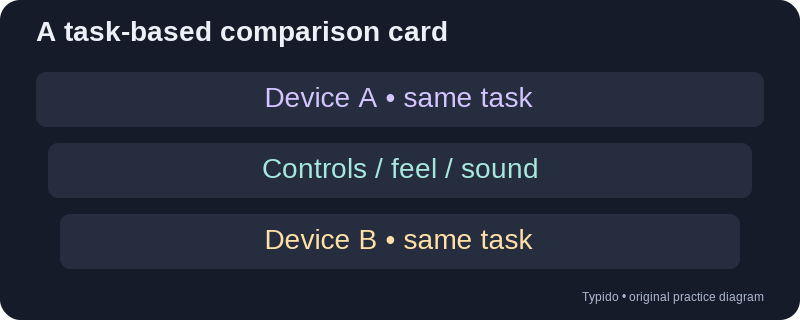
A task-based comparison card
- Same text
- Use the same fictional passage and correction rule on both devices.
- Controls
- Note searches for Return, Backspace and Shift separately from key feel.
- Sound
- Listen in the intended room; record a personal observation.
- Decision
- Prefer the device that fits the tasks you actually need.
Prepare a task card before trying either keyboard
Write down the jobs you want a keyboard to support. For example, your list could include drafting email, correcting a paragraph, entering a fictional reference number and using familiar navigation commands. Choose tasks that matter to you rather than reproducing someone else’s shopping priorities. If you rarely type long prose, a long prose test should not become the only item on the card. Give each task enough space for a short note.
Now prepare identical fictional text for both devices. Try “Please move the green folder to shelf B before lunch.” Include a second sentence with capitals and punctuation if those are part of your work. Keep the application, passage and correction rules unchanged during the comparison. Decide in advance whether you will time the task. An untimed observation can be sufficient when the question is key location or sound. Do not add harder text to one keyboard after seeing a result you dislike.
Compare sound and feel in the environment where you type
Try the board in a setting that resembles its intended use, if a suitable trial is available. Type a few ordinary sentences rather than repeatedly striking a single demonstration key. Include space, Enter and Backspace in your check. Ask whether the sound is acceptable to the people who share the room. Read any workplace equipment rules before bringing in a replacement keyboard. A keyboard that you enjoy at a demonstration desk may be a poor practical choice for a quiet shared workspace.
Describe the feel using observations instead of unsupported performance claims. Note accidental repeated inputs, letters you failed to register or a tendency to press harder than intended. Keep these separate from the question of whether you like the sound. Do not use a manufacturer’s durability rating as a forecast of your exact ownership experience. If the model offers multiple switch versions, verify which one you are trying and which one is listed for purchase; the same product name may be sold in different configurations.
Use unfamiliar text and a consistent comparison method
Choose a brief prose exercise with ordinary capitals and punctuation. Keep the test duration, language and correction rules the same across the boards. Use different passages of similar complexity so that memorizing a sentence does not become the main advantage of the second attempt. Record accuracy as well as WPM. On Typido, a copying result measures the particular text-entry attempt; it is not a laboratory comparison of keyboard mechanisms or evidence that a purchase caused a lasting change.
Give yourself time to locate unfamiliar controls before measuring. Keep a note of the order in which you tested the boards and anything that interrupted the attempt. If you repeat the comparison later, change the order. Treat the results as a personal record rather than a universal product ranking. A small difference between attempts may be less informative than a recurring issue, such as reaching past an unfamiliar key or repeatedly omitting spaces. Focus the next trial on that observable problem.
Check maintenance claims and replacement options directly
Before changing keycaps, opening the case or cleaning a switch, read the actual manufacturer’s instructions for that model. Do not assume that a feature associated with some mechanical boards is available on every mechanical board. Check whether any proposed maintenance affects a warranty or workplace approval. The safest comparison for an unfamiliar product is often an ordinary typing trial with the board intact. A general guide cannot establish which parts of an individual keyboard are designed to be removed.
Make an ownership checklist that reflects your needs: connection compatibility, available desk space, access to required keys, cleaning instructions and a realistic return option. Include any software installation the board requires for remapping or special functions. If your computer is managed by a school or employer, confirm that such software is permitted. These details may matter more to a useful purchase than a speed claim. Keep an existing working keyboard available while evaluating a change, rather than disrupting important work for a trial.
Choose from your observations instead of a category winner
Review your notes and identify the actual problem you want to solve. If the issue is unfamiliar punctuation positions, a different layout may be more relevant than a different mechanism. If the issue is sound in a shared room, evaluate the exact board in that context. If you cannot identify a problem with your existing keyboard, there is no typing requirement in this guide that obliges you to replace it. A focused practice session is still available on the equipment you already use.
Write a final comparison in plain terms: the controls you found easier to locate, mistakes you repeated and any practical limitation of the setup. Avoid converting that note into a claim about everyone’s productivity or health. If you keep a new board, practice the changed movements with short original examples and review accuracy before chasing an old best score. If you keep the existing one, use the same process to choose a small typing improvement. Both outcomes can follow from a careful, useful comparison.
Common questions
Are mechanical keyboards always faster for typing?
The complete layout, familiarity, task and comparison method determine what a personal trial can tell you. Use a repeatable personal trial and inspect errors rather than treating the mechanism as a guaranteed WPM improvement.
Is a scissor keyboard the opposite of a membrane keyboard?
Those labels can describe different parts of a design. CHERRY documents scissor mechanics combined with membrane contacts. Read the exact model’s construction rather than assuming the terms are mutually exclusive.
Sources and further reading
- CHERRY: Keyboard technologies
Supports the specific factual statement cited in the opening section. The remaining worksheets and fictional exercises are original Typido practice suggestions, not clinical findings or measured performance gains.