Keyboard setup
Choosing an ergonomic keyboard: evaluate the whole workstation
Use a practical workstation check to compare keyboard width, placement, split designs and number-pad needs without promises of medical benefit or faster WPM.
An ergonomic label is a starting point for questions, not proof that a keyboard will suit your hands, desk or tasks. Begin with the arrangement you already use. Consider where the keyboard sits, where the mouse fits and which movements you repeat. This guide offers a structured comparison and original observation exercises. It does not diagnose discomfort, prescribe equipment or claim that a particular shape prevents injury. You may discover that an adjustment is more relevant than a purchase.
Start with placement before choosing a design
OSHA’s keyboard guidance recommends placing the keyboard in front of the user, keeping shoulders relaxed and elbows close to the body, with wrists aligned with the forearms. Its purchasing checklist notes that alternative designs such as split keyboards may help maintain neutral wrist positions. These are workstation considerations, not a guarantee that a product will solve an individual problem. Evaluate keyboard placement together with the mouse, desk and chair rather than treating the keyboard as an isolated object. [OSHA keyboard guidance and purchasing checklist] [OSHA purchasing guide]
Take an observation break from typing and look at your existing setup. Is an object pushing the keyboard to one side? Is its cable preventing a useful position? Does the mouse have enough room? Change only one practical arrangement at a time, then check whether you can reach the controls comfortably. Write down the change in plain language, such as “moved notebook away from mouse area.” Avoid turning the observation into a medical conclusion or a promise about the next typing score.
Match keyboard width to the controls you actually need
OSHA’s purchasing guide suggests considering a keyboard without an attached number pad when the task does not normally require one; the mouse can then be placed closer. It also discusses a separate keypad for occasional numeric work. This is a reason to examine your task, not an instruction that everyone should remove the pad. A person entering long numeric records may make a different choice from someone mainly writing prose and moving between text documents. [OSHA purchasing guide: keyboards]
List the controls used in a normal session: letters, punctuation, arrows, editing keys and numeric input. Mark the ones you need repeatedly and the ones you rarely touch. Compare a proposed layout with that list. Check the actual locations of Delete, Home, End and function controls in the manufacturer’s diagram. A compact board that changes familiar keys may require its own learning period. Decide which layout differences you are willing to practice before judging the new board by its first score.
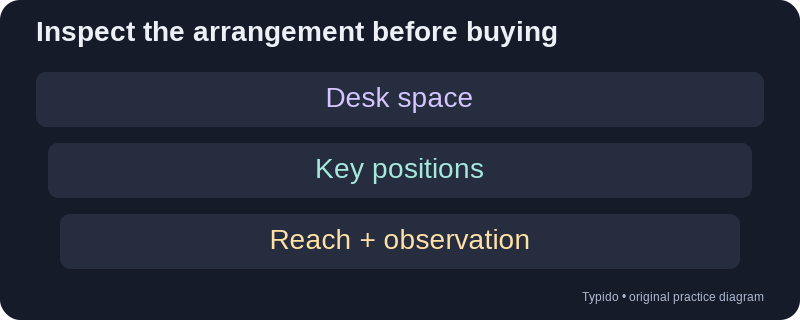
Inspect the arrangement before buying
- Keyboard position. Check reach and available desk space with the current equipment first.
- Controls. Locate frequently used modifiers, navigation keys and number entry.
- Trial. If a trial is available, copy a fictional task and record comfort separately from speed.
Treat a split layout as a change in movement
If you are considering a split design, inspect the exact model rather than relying on a photograph of a similar one. Identify which keys sit on each half, whether the halves move independently and how they connect. Locate letters you currently reach for with either hand. Note any duplicated or relocated keys. This creates a concrete list of movements to learn and helps distinguish a layout adjustment from a change in key feel, height or software configuration.
Write a short sentence containing the letters that cross your current hand habits. Practice it slowly in a blank document, checking the intended key before repeating the movement. Change the sentence after a few attempts. Do not try to prove that the new arrangement is better by immediately comparing your familiar-board record with an unfamiliar-board attempt. First determine whether you can enter and edit text reliably. Keep a note of the particular reaches that still require attention.
Include the keyboard’s height and the surrounding space
Compare the board with the surface where you intend to use it. Check that there is stable space for the keyboard and any separate controls. Make sure cables and connectors can reach without forcing the equipment into an awkward position. Read the model’s adjustment instructions before changing its feet or accessories. A diagram, a return policy and a chance to try the equipment are more useful to this decision than an unsupported claim that one angle suits every user.
Use a small trial task that involves more than letter entry. Type a fictional note, correct a word, select a short phrase and reach for the pointing device. Observe whether a change creates a new difficulty elsewhere. For example, a board that fits the letters comfortably may leave too little space for the mouse on your desk. Describe the problem precisely and reconsider the arrangement. Do not continue an uncomfortable trial just to obtain a complete timed result.
Compare comfort observations separately from speed
Keep two records during a comparison. In one, write setup observations such as key locations, desk clearance and controls you had to look for. In the other, record a short, comparable typing attempt if you want a fluency baseline. This separation helps you avoid interpreting a higher score as proof of a health benefit. It also lets you recognize a useful layout improvement without demanding an immediate personal-best score on equipment you have only just started using.
Choose one practical question for the next trial: Can you find the editing keys without searching? Can you return from the mouse to the text reliably? Are you making repeated substitutions near a relocated key? Use a fictional paragraph and review the finished text. If discomfort persists, stop the exercise and seek appropriate individualized advice rather than treating a typing website as a way to diagnose the cause. The purpose of the record is to support a clearer conversation about your setup.
Make a purchase decision from a written comparison
Before spending money, summarize the problem you are trying to address and the features that are relevant to it. Include layout, available desk area, connection requirements, number-pad use and any software restrictions at work. Verify these details in the actual product documentation. If possible, compare the arrangement in person or use a meaningful trial period. Do not substitute a popularity ranking for checking whether the equipment fits the place where you will actually use it.
After a trial, decide whether to keep practicing, change the arrangement or return to your existing setup. Record the reason in observable terms. “I still search for the relocated Backspace key” is more useful than “I am bad at ergonomic keyboards.” You can then choose a focused practice task or a different layout. Keep any claims about medical outcomes separate from this decision. A useful keyboard choice supports your real tasks and can be evaluated without invented health or productivity statistics.
Common questions
Will an ergonomic keyboard automatically improve my WPM?
No improvement is promised here. A new layout changes the task, and an unfamiliar arrangement may require practice. Evaluate accurate movement and the whole workstation separately from a short speed result.
Should everyone use a split keyboard?
No single design is recommended for everyone. Compare the actual layout, placement, tasks and available space. OSHA describes split designs as an option that may help with wrist position, not a universal prescription.