Keyboard setup
Laptop vs desktop typing: compare the setup, not just the score
Separate keyboard familiarity, screen placement and editing controls when moving between laptop and external keyboards. Use a careful personal comparison.
Moving from a laptop keyboard to an external keyboard changes more than where the letters appear. The screen, pointing device, desk arrangement and editing controls may also move. A lower first score does not identify which change caused a hesitation. This guide provides an original way to compare the setups, document the differences and practice the movements that actually changed. It does not declare that laptop or desktop typing is universally faster, or turn a personal observation into a medical conclusion.
Separate the keyboard from the computer category
OSHA’s workstation purchasing guide recommends external input equipment for laptop and tablet setups and explains concerns with prolonged use of built-in laptop keyboards. Its guidance is about workstation arrangement, including placement and contact with edges. It does not provide a laptop-versus-desktop WPM ranking. Keep those questions separate: where the screen and keyboard are positioned is a setup question; how quickly you copy a particular passage is a performance observation under specific conditions. [OSHA workstation purchasing guide: keyboards]
Describe your two proposed setups without relying on category names. For example, one might use a built-in keyboard at a desk, while another uses the same laptop connected to an external keyboard and display. A desktop computer can also be paired with many different keyboards. Record what actually changes in your comparison. Include the screen position, input layout and mouse location, so that a later observation such as “I looked down more often” has useful context.
Map the controls that moved
Before timing an attempt, inspect the actual key positions on both boards. Find Delete, the arrows, Home, End, the function row and any number-pad controls you regularly use. Check the model’s instructions for secondary functions instead of assuming the same shortcut activates them. Type a short fictional line and practice moving to a correction, making the change and returning to the end. This exposes navigation differences that a paragraph-copying score can otherwise hide inside one unexplained number.
Choose a few controls that caused a search and create a small practice card. Describe the action in words, such as “move to the beginning of the line,” beside the verified key or command for the application you use. Do not memorize a hardware shortcut without knowing what action it performs. If a function depends on an application or keyboard setting, record that condition. The goal is a dependable editing sequence, not a collection of shortcuts that work only in a particular demonstration.
Choose a small group of controls that interrupt your normal work when you switch devices. Return, Backspace, Delete, arrows and the modifiers are possible candidates, but your list should reflect your own tasks. Sketch their locations on each keyboard. Use the labels on the actual devices rather than a generic picture found online. If a control requires a combination or an alternate layer, copy the relevant instruction from the device documentation into a private reference note.
Place the maps beside a blank document and find each control without timing yourself. Then close the reference and repeat only the controls you were uncertain about. The purpose is to identify the transition problem, not to memorize every key on the board. If you normally use an external pointing device at the desk and a trackpad elsewhere, add that difference to the map. Moving between text and the pointer is part of your real task, so it deserves a place in the comparison.
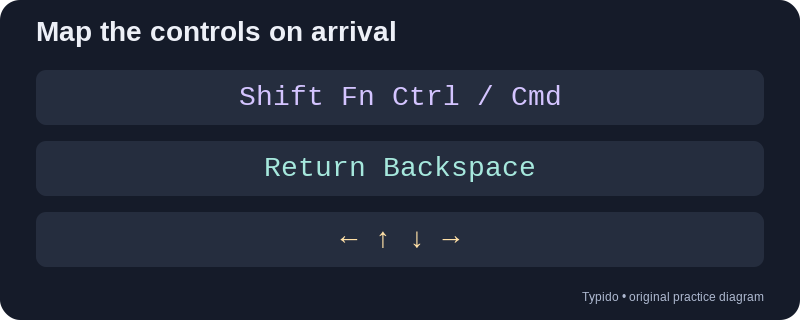
Map the controls on arrival
- Input layout. Type a harmless line to check characters before changing technique.
- Return and Backspace. Locate each key on the keyboard now in front of you.
- Modifiers and navigation. Find Shift, the application modifier, arrows and any Fn layer you use.
- First task. Copy one short sentence, make one correction, then begin normal work.
Check placement before measuring speed
OSHA recommends a keyboard directly in front of the user, with relaxed shoulders, elbows near the body and wrists aligned with the forearms. Use that guidance to examine the arrangement rather than prescribing one setup for everyone. An external keyboard introduces a placement choice; a built-in keyboard is physically tied to the laptop’s display. Evaluate the surrounding desk and equipment when deciding how to arrange either option. A typing score cannot establish that an arrangement is suitable for an individual. [OSHA keyboard placement guidance]
Remove objects that unnecessarily restrict the available area and make one practical adjustment at a time. Write down what you changed before beginning the comparison. Check that a separate keyboard and mouse can remain stable during ordinary use. Stop a trial that feels uncomfortable instead of continuing to obtain a final score. If a difficulty persists, seek appropriate individualized guidance. The purpose of this exercise is to notice the conditions of your practice, not to diagnose why a particular setup feels difficult.
Use a fictional arrival task
Start each transition with the same harmless task: type a short note, correct one word and add a new line. For example, enter “Bring the amber folder to Room C.” Change amber to violet, then add “Leave it beside the lamp.” Read the final text before doing anything else. Record a specific hesitation, such as searching for the arrow keys or pressing the wrong control while correcting the color.
Use this task as an orientation check, not a warm-up you must finish at a particular speed. If a character appears incorrectly, pause and check the input layout. If the character is right but finding the control is difficult, refer to the device map. Those responses solve different problems. Avoid repeatedly rewriting the whole paragraph when a single control caused the interruption. Isolate that action, try it calmly in the disposable document and then return to the note. Keep the fictional text available so both arrangements receive the same task.
Run a copying comparison with controlled conditions
Keep the language, duration, punctuation settings and correction rules consistent across attempts. Use unfamiliar passages rather than repeating a text until its sequence is memorized. Include the keyboard and setup in your practice record. Review accuracy and repeated errors alongside WPM. If you switch the order of the setups on a later occasion, record that too. Your result describes your attempt on that equipment; it is not a measured average for all laptop users or all external-keyboard users.
When an attempt differs noticeably, inspect the mistakes before deciding what to change. A repeated missed apostrophe suggests a location or movement to practice. Losing your place in the source suggests a different problem from striking the wrong key. Choose one issue and try a short drill with new text. Avoid attributing every change to key travel, switch type or the computer’s category when you did not isolate those variables. A cautious explanation is more useful than a confident comparison with unclear conditions.
Include editing and mixed work in your trial
Create a harmless document containing a heading, a short paragraph and a few fictional reference codes. Enter the text, correct a word near the beginning and select a phrase for replacement. Notice the transitions between typing and navigation. If your real work includes numeric records, add a separate invented-record task and label it separately. This broader trial helps you identify which actions deserve practice without merging all of them into a prose WPM score that no longer describes one consistent activity.
Try returning from the pointing device to the keyboard and resuming a sentence. Check whether you can find the intended hand position without searching. On a compact board, pay attention to any layered key you needed during the edit. Keep a note of the action and the verified way to perform it. If switching between two setups is unavoidable, maintain a brief reference for the controls that differ. You can then rehearse the transition itself rather than treating every unfamiliar moment as a speed problem.
Heading: Draft notice
Reference: LK-2074
Task: replace “Tuesday” with “Thursday”, then check the unchanged reference.
Build a transfer routine for the equipment you use
Before an important session on a different keyboard, spend a short untimed period locating the relevant controls and entering ordinary text. Follow with a simple editing action and review the result. Keep the routine small enough to use consistently. It is a familiarization exercise, not a claim that everyone needs the same warm-up duration. Choose examples that resemble your task while keeping the content fictional and harmless, especially when practicing on a shared or managed computer.
Review your notes after several ordinary sessions and decide which differences still matter. You may need more practice with one punctuation key, a clearer editing reference or a better arrangement of the external equipment. You may also find that keeping the current setup is the practical choice. Make the decision from the task and the available space rather than a general laptop-versus-desktop ranking. Continue to compare like-for-like typing attempts when you want to measure fluency, and keep setup observations separate from medical or productivity claims.
Common questions
Should my laptop and desktop WPM be identical?
There is no promised match. The keyboard layout, familiarity, source text and test conditions may differ. Record those conditions and inspect recurring errors before interpreting a score difference.
Can I compare an external keyboard while using the same laptop?
Yes, as a personal practice comparison. Describe the complete setup and keep the other test conditions as consistent as practical. It still does not isolate every hardware variable or establish a universal speed ranking.
Sources and further reading
- OSHA workstation purchasing guide
- OSHA keyboard placement
- Microsoft: Language and keyboard input layouts
Supports the factual software-setting statement cited in the first section. The device maps, fictional text and practice sequences are original Typido suggestions, not measured performance claims.