Practice setup
Set up a keyboard workstation for comfortable practice
Check keyboard reach, screen readability, support, and input settings with a practical review based on OSHA workstation guidance.
A typing session starts before the timer. If the keyboard is difficult to reach or the passage is hard to read, the result includes those obstacles. A setup review helps you remove avoidable friction without buying a new desk or treating one posture as a cure. This is general practice guidance informed by OSHA’s workstation material. It is not an individualized medical assessment or a promise to prevent or treat symptoms.
Check the reach before changing the exercise
Sit or stand in the position you intend to use and bring the keyboard within a comfortable working area. Notice whether you need to lean forward, hold your shoulders raised or reach past another object. Move unnecessary items away from the input area. Do not judge the arrangement only by how symmetrical it looks on the desk; check whether the keys, pointing device and source text are usable during the actual task.
OSHA’s workstation guidance emphasizes relaxed shoulders, supported feet where appropriate and a generally neutral relationship between hands, wrists and forearms. Use those points as a setup check, not a rigid pose to hold throughout the day. Equipment and bodies differ. If changing a chair height makes the keyboard easier to reach but leaves your feet unsupported, reconsider the whole arrangement rather than optimizing one measurement in isolation.
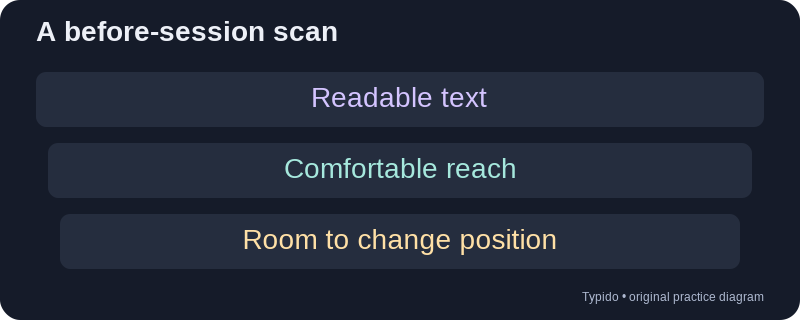
A before-session scan
- Reach. Place the keyboard so you can reach it without leaning forward.
- View. Make the source text readable before starting a timed attempt.
- Input. Type a harmless test line and check the active layout.
- Pause. Plan a stopping point and change position when needed.
Make the text easy to see without changing the task
Increase the passage size if reading it requires repeated leaning or squinting. Position the source where you can move between it and your typed text without losing the line. Check glare and contrast using the settings available on the device and in the activity. On Typido, current typing appearance controls are Free, so a paid subscription is not required merely to adjust the supported fonts, colors or related appearance options.
Keep the text settings consistent when comparing test results. Changing the passage width or text size can alter line breaks and where you pause, even when the underlying words remain the same. Record a meaningful display change alongside your result. Readability should support the task; it should not become a reason to hide punctuation or choose easier text while claiming that a later score measures identical conditions.
Verify layout, sound and browser behavior
Open a blank document and check that a few letters, a capital and a punctuation mark produce what you expect. A mismatched software layout can look like an accuracy problem. Check browser zoom, any accessibility tools you use and whether another application is capturing key combinations. Do this before a timed attempt so troubleshooting is not mixed into the score. A phone touch keyboard is a different input setup from a physical keyboard lesson.
If you plan to use a game, preview its sound and motion. Reduce or disable audio where appropriate and choose an activity whose instructions you can follow. A busy scene may add a challenge you did not intend to measure. Keep the ability to pause or exit clear. The purpose of a setup check is to understand the environment, not to force every user into the same sensory or visual configuration.
Notice support and contact points
Check whether a hard desk edge is pressing against your forearms while you reach for the keys. Notice whether a support interferes with the movement rather than assuming that adding an accessory always helps. Follow relevant workstation guidance and adjust the arrangement to the task. You should be able to stop and reposition without losing an essential piece of work. A practice session is an opportunity to review the setup, not a reason to ignore discomfort.
Separate a learning problem from a setup problem. If a key is unfamiliar, a short drill may help. If the same movement is uncomfortable, repeating it faster is not a sensible diagnostic method. Stop the exercise, reconsider the arrangement and obtain appropriate professional advice for persistent or concerning symptoms. A typing article cannot determine the cause of pain or choose a treatment, and an online score does not provide that information either.
Allow changes of task and position
OSHA recommends varying computer work and taking short pauses rather than treating an adjusted workstation as permission to remain in one position indefinitely. For a practice session, choose a stopping point before attention deteriorates. Look away from the passage, release the keys and change activity when needed. The exact arrangement of a workday depends on the person and setting, so this guide does not prescribe one mandatory schedule for everyone.
Avoid turning a streak or game objective into pressure to continue when you need a break. A saved note can make returning easier: write the difficult key pair and the next example to try. You can then resume with a clear purpose instead of extending the current attempt simply because you fear losing progress. Review the activity’s actual save behavior, because guest results, account history and individual game progression are not interchangeable forms of storage.
Use a simple before-session review
Check five things: the expected input layout, a comfortable reach, readable source text, an appropriate activity and a clear stopping point. Then type one short unfamiliar sentence without a timer. If the environment feels workable, proceed to the lesson or test you selected. If not, correct the setup before interpreting a score. This review keeps avoidable technical and physical obstacles from being mislabeled as a lack of typing skill.
When you later change keyboards or workstations, repeat the review and make a note in your practice record. Compare tests under similar conditions before concluding that a score change reflects learning. You do not need new equipment to make every useful adjustment, and equipment alone does not guarantee improvement. Choose the smallest practical change that addresses what you actually observed, while preserving any accessibility support or professional guidance that applies to you.
Common questions
Is one keyboard position correct for everyone?
No individualized arrangement is prescribed here. Use general workstation principles, your equipment and any relevant professional advice. Review the whole setup rather than forcing a position because it matches an illustration.
Can a typing score diagnose a health problem?
No. A score describes a particular practice task. Stop an uncomfortable exercise and seek appropriate help for persistent or concerning symptoms rather than interpreting WPM or accuracy as a diagnosis.